Blog › Planner palettes · 2 min read
Teal & apricot colour palette: fresh hex codes for your planner
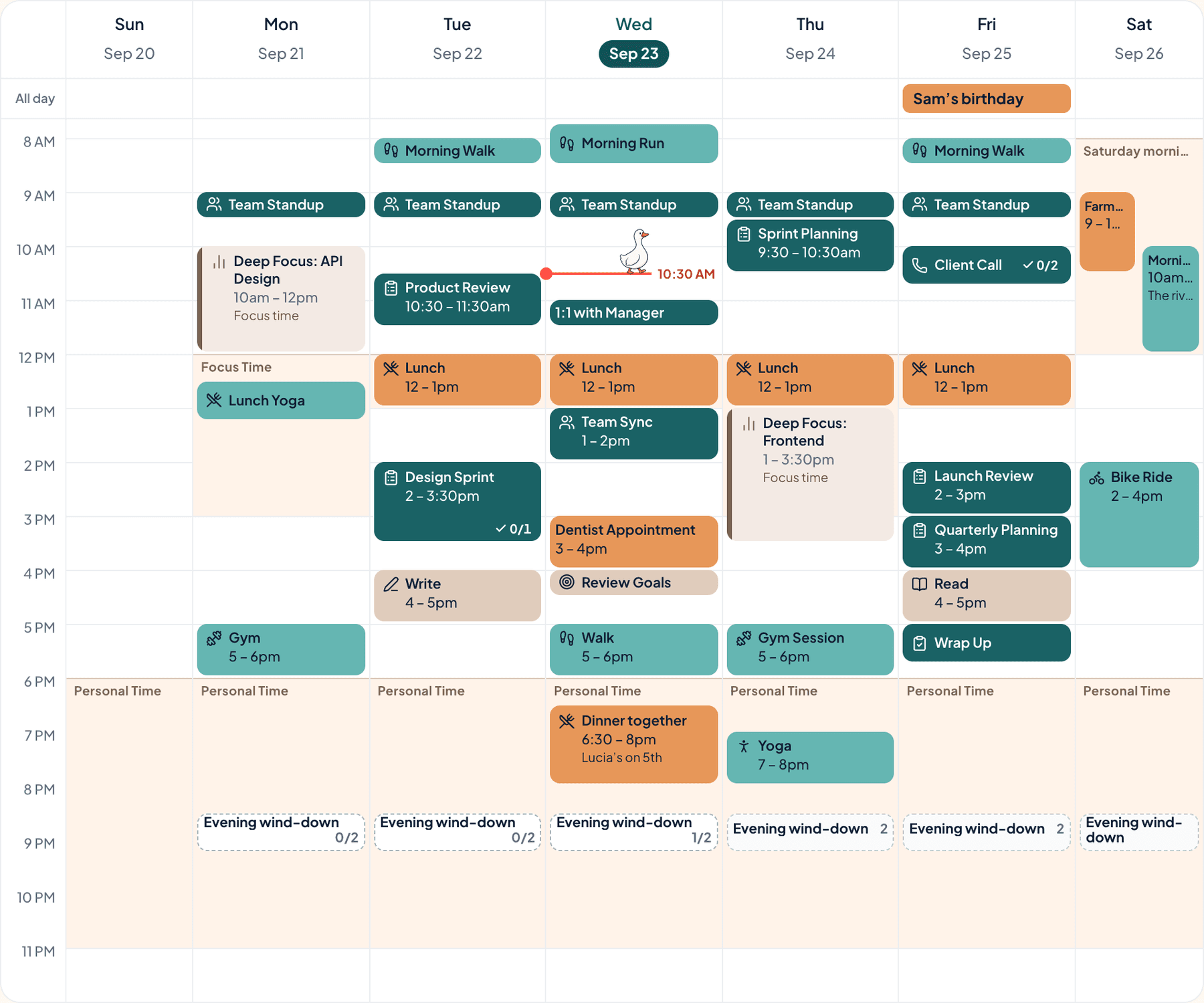
Teal and apricot, with a brighter turquoise and a peach cream. It’s fresh and a little tropical, like a cold drink on a warm day.
Teal & apricot
Tap a colour to copy it
Where each colour goes
| Colour | Hex | Use it for |
|---|---|---|
| Work (teal) | #1D6F73 | Work blocks, in a deep teal |
| Health (turquoise) | #45A29E | Workouts and walks, in a brighter turquoise |
| Personal (apricot) | #FFA55E | The warm one, for friends and weekends |
| Goals (peach cream) | #FFE8D6 | Your goals, in a pale peach cream |
| Accent (deep teal) | #165255 | Buttons, today’s date and highlights |
| Protected time (peach cream) | #FFE8D6 | A soft wash over your protected time |
Cool for work, warm for you
Teal and apricot are near-opposites, so they’re easy to tell apart at a glance. The two cool colours carry the working day and the apricot is saved for Personal. When you look at your week, the warm blocks are your own time.
Your week in teal & apricot
The week at the top of this post is a real week in Anser, in the Summer Picnic style with the Bold look for categories, so every event shows its full colour. To get the same look, open Settings › Appearance › Colours › How categories look and choose Bold. The palette works in every style.
A fresh-start week
- Move for ten minutes before the first screen.
- Try one new lunch.
- Tidy the thing you look at most. Your desk, or your home screen.
- Plan one thing just for fun.
Make it in Anser
The quickest way: tap Use this palette in Anser on the palette. It opens on your own week, to keep or undo. To set it up by hand:
- In Anser, open Settings › Categories. Tap the colour next to Work and paste its hex code. Do the same for Health, Personal and Goals.
- Open Settings › Appearance › Colours and tap Save as my palette, so you can switch back any time.
- Still in Colours, under Accent, choose Your own and paste the accent.
- Open Settings › Boundaries › How protected time looks, choose Your own and paste the protected time colour. It also colours your Deep Focus time.
Changed your mind? Your saved palettes are under See all in Settings › Appearance › Colours.
Pair it with a calm week
You don’t need to work on it every night. Side Project, No Burnout is a free schedule template you can add to your calendar or preview in Anser.
Use this in Anser
Side Project, No Burnout
See it on your own week first. One tap to undo.
More palettes like this
Try Anser free for 14 days, no card needed. A calm weekly planner that works with your Google Calendar, in the colours you like.